RTSP vs ONVIF: connecting any IP camera to AI monitoring
· 6 min read · InsightCam
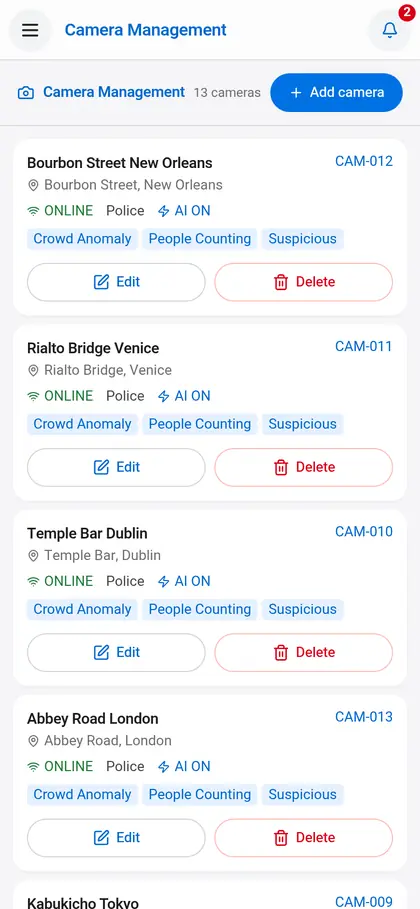
If you want to connect cameras from different manufacturers to one AI monitoring system, you will quickly meet two acronyms: RTSP and ONVIF. They are often mentioned together, sometimes as if they were alternatives. In fact they do different jobs, and most real installations use both. This article explains what each one is, how they relate, and how to use them to connect almost any IP camera to AI analytics.
RTSP in one paragraph
RTSP, the Real Time Streaming Protocol, is a network protocol for controlling media streams. A client such as a video management system, a media player or an analytics service connects to an address like `rtsp://192.168.1.20:554/stream1`, and the camera starts sending video, typically encoded as H.264 or H.265 and carried over RTP. RTSP itself only sets up and controls the session (play, pause, teardown); the video travels alongside it. Almost every IP camera and NVR supports RTSP, which is why it is the most common way to pull live video into third-party software.
ONVIF in one paragraph
ONVIF is not a streaming protocol. It is an industry standard, maintained by the ONVIF organisation, that defines how IP security products describe and control themselves over the network using web services. An ONVIF-compliant camera can be discovered on the network, can tell a client which video streams it has and their RTSP addresses, can provide snapshot URLs, and, depending on the profile, can expose PTZ control, events, recording access and more. In other words, ONVIF is the "phone book and remote control"; RTSP is often the "pipe" the video flows through.
The ONVIF profiles that matter
ONVIF groups features into profiles. For AI monitoring the most relevant are:
- Profile S: the classic streaming profile. It lets a client discover the camera, read its stream configuration, get the RTSP URI and a snapshot URI, and control PTZ.
- Profile T: the newer streaming profile, adding H.265, better metadata and event handling, and HTTPS support.
- Profile M: metadata and analytics events from cameras with built-in analytics.
- Profile G: on-device recording and playback.
A camera that says "ONVIF Profile S or T" is usually all you need to connect it to an analytics platform.
Key differences
- Purpose. RTSP carries and controls a stream. ONVIF discovers, describes and configures devices, and points you to their streams.
- Discovery. RTSP has no discovery; you must know the URL. ONVIF uses WS-Discovery to find devices on the local network.
- Vendor differences. RTSP paths vary by manufacturer and model (`/Streaming/Channels/101`, `/cam/realmonitor?channel=1&subtype=0`, `/h264Preview_01_main`). ONVIF gives you a standard way to ask the camera for the right path.
- Snapshots. ONVIF defines a snapshot URI, which returns a single still image of the current view.
- Authentication. Both commonly use usernames and passwords (digest authentication). ONVIF also requires a reasonably accurate camera clock, because its WS-Security tokens are time-stamped.
Which one should you use for AI?
For AI monitoring the practical answer is: use ONVIF to find and configure the camera, and use whatever gives the clearest image.
- If the camera offers a full-resolution ONVIF snapshot URI, it is usually the simplest option to set up.
- If the snapshot is low resolution, or you want the full-quality main stream, use the RTSP stream.
- For analogue cameras connected to a DVR, or for brands with limited ONVIF support, the NVR's RTSP output per channel is usually the most reliable route.
A good analytics platform supports all three: plain RTSP URLs, ONVIF discovery and snapshot URIs, and direct HTTP snapshot URLs. That is how InsightCam's camera wizard works; you can choose the method for each camera when you sign up.
Connecting cameras securely
Camera security is where many projects go wrong. Some practical rules:
- Never expose RTSP or ONVIF ports (554, 80, 8000 and similar) directly to the internet. Cameras are a frequent target for botnets.
- Use a gateway on the local network that reaches the cameras privately and connects out over an encrypted, outbound-only connection. No inbound firewall rules are needed.
- Create a dedicated, least-privilege camera user for analytics, with view-only rights, rather than reusing the admin account.
- Change default passwords and update firmware. Many "ONVIF does not work" problems disappear after a firmware update.
- Keep camera clocks in sync with NTP, which ONVIF authentication depends on.
- Store credentials encrypted in the analytics platform, never in plain text or in shared spreadsheets.
Troubleshooting checklist
- The stream will not open: test the RTSP URL in VLC from a machine on the same network. Check the port, path, username and password, and whether the camera expects TCP or UDP transport.
- ONVIF discovery finds nothing: ONVIF may be disabled by default in the camera settings, or a separate ONVIF user may be required. Discovery also does not cross routers or VLANs without help.
- Authentication fails only for ONVIF: check the camera's date and time.
- Images are blurry or tiny: you may be reading the sub-stream. Switch to the main stream or a higher-resolution snapshot profile.
- Night images are poor: check IR illumination and exposure settings; AI cannot see what the sensor does not capture.
Finding the right RTSP address
When ONVIF is not available, you need the stream path from the manufacturer. A few practical tips:
- Look in the camera's web interface under network or streaming settings; many show the full RTSP URL.
- Check the manufacturer's documentation or integration guide, which usually lists the main stream and sub-stream paths per model.
- For NVRs and DVRs the path normally includes a channel number, so one recorder exposes one URL per connected camera.
- Prefer the main stream for monitoring when bandwidth allows, and the sub-stream for quick previews.
- Write down which URL, user and stream you used for each camera. It saves hours when cameras are replaced or re-addressed.
Once a URL plays in VLC on the local network, it will almost always work in an analytics gateway on the same network.
Putting it together
RTSP and ONVIF are complementary. ONVIF gives you discovery and a standard way to ask a camera what it can do and where its streams and snapshots live; RTSP delivers live video that works with almost everything. With either one, InsightCam can alert you to people, vehicles, objects, fire and smoke, and describe a scene in plain language. Cost and privacy are covered in Smart AI alerts vs 24/7 video watching.
If you already have cameras, see how they would look in InsightCam on the home page, book a demo, or create an account and connect the first one.